AI Photo Editing Software That Keeps Every Step in One Window
Remove objects, cut out subjects, replace the sky, colorize, add bokeh, sharpen, remove noise and enlarge: these AI functions work on the same photo in one program.
MKGpics AI PHOTO EDITOR is an AI image editor for the PC. It puts its AI functions at the center, so editing images with AI takes only a few clicks. The calculation runs on your own computer, with no subscription and no running costs.

The process stays the same. The photo is opened once, the AI tab starts each AI function with this photo, and the result returns to the editor. After that the standard steps of AI photo editing software follow, such as cropping, image adjustments, filter presets or text, until the photo is finished.
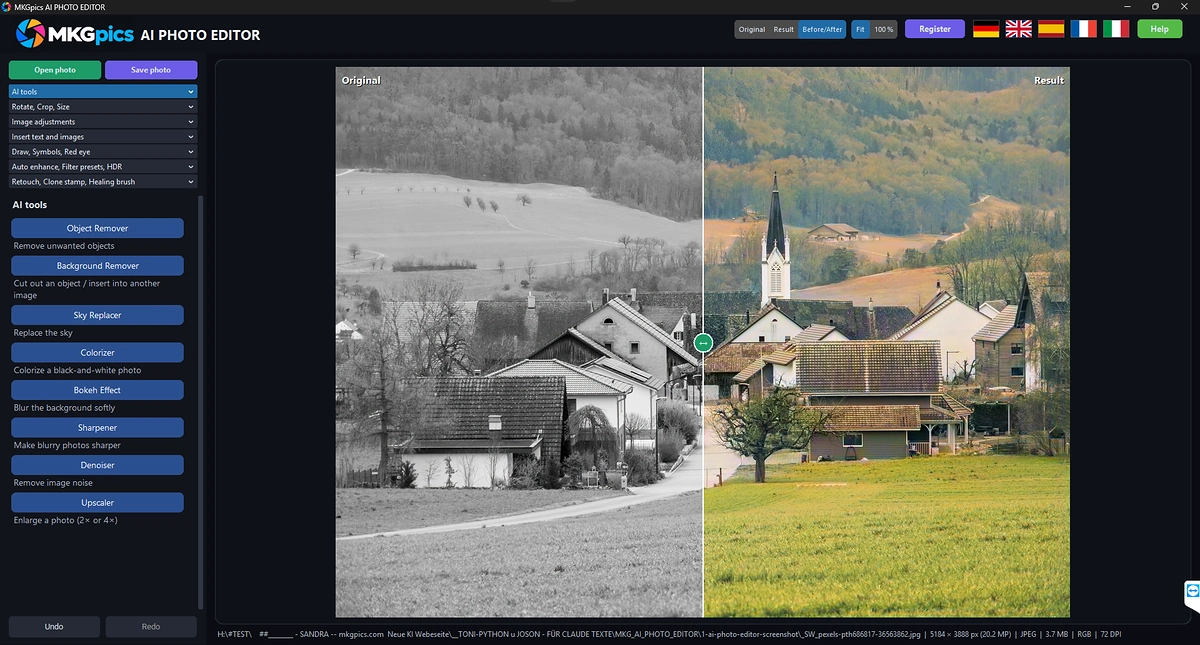
AI image editor with an AI tab for editing photos with AI.
Everything the AI Image Editing Software Offers
- Remove objects: take unwanted objects out of the photo
- Remove the background and cut out subjects
- Replace the sky
- Colorize black and white photos
- Bokeh effect: blur the background softly
- Make blurry photos sharper
- Remove image noise
- Enlarge photos to twice or four times the width and height, 2× or 4×
- Every AI result returns to the photo, Undo and Redo stand ready
- Before/After comparison of original and result
- Rotate, flip, straighten, crop and resize
- Image adjustments for brightness, contrast, exposure, highlights, shadows, white balance, saturation, vibrance, sharpness, blur, vignette and grain
- Enhance automatically, filter presets from Vintage to Cinema, black and white, sepia and HDR
- Insert text and images with font, color, outline, shadow, opacity, rotation and curve
- Draw with brush, line, arrow, rectangle, ellipse and frame, plus red eye removal
- Retouch with clone stamp, healing brush, smooth, dodge, burn, blur and sharpen
- Save as PNG, JPG, WebP, TIFF or PDF, keeping EXIF data is selectable
- The original image is never overwritten
- Opens PNG, JPG, JPEG, WebP and BMP, photos are dragged into the window with the mouse
- Choose between German, English, Spanish, French and Italian as interface language
- The AI results come from Python libraries on your own computer, with no extra AI costs
- Everything is calculated on your PC, so photos are neither uploaded nor stored in a cloud
- No subscription and no ongoing costs
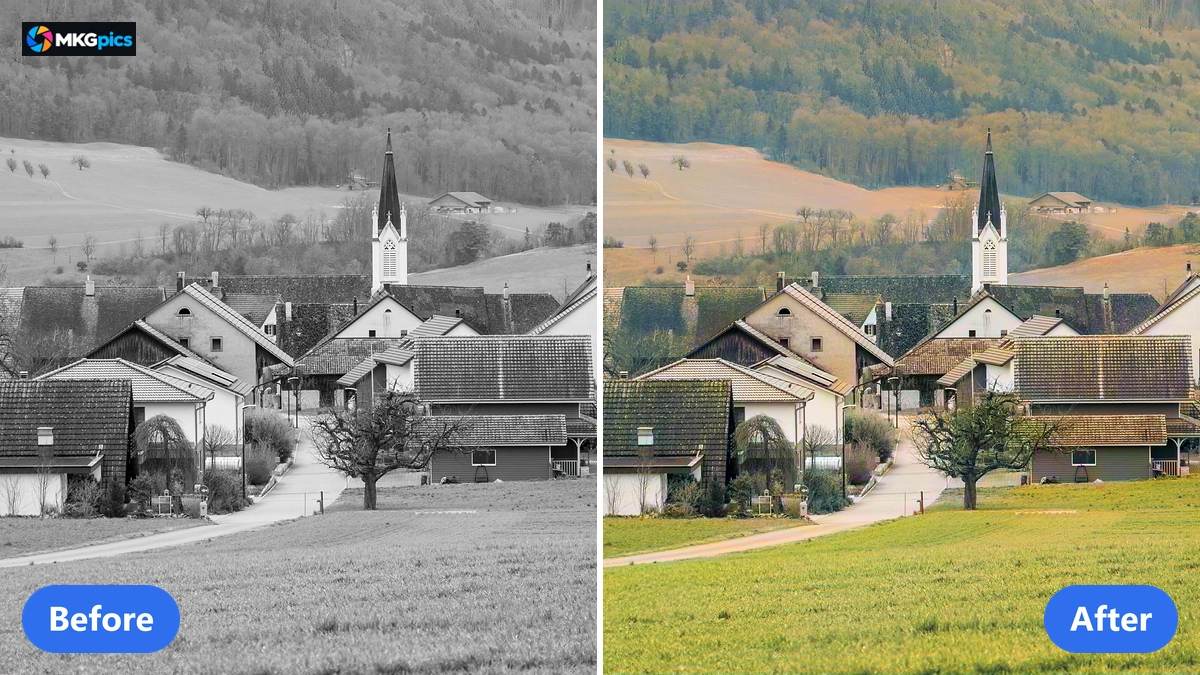
Before and after in the AI image editor, original and result can be compared directly.
Edit a Photo with AI in Four Quick Steps
Open the photo, choose an AI function, check the result, save the photo: a photo needs nothing more.
Clicking Open photo puts the photo into the editor, or you drag it into the window with the mouse. The preview shows original and result, and Fit makes the photo fill the view.
The AI tab lists the AI functions one below the other. One click opens the chosen function with the current photo. The photo is edited and saved there, then the result appears in the editor, and the status line names the new dimensions in pixels. If you close the function without saving, the photo stays unchanged.
» Free Download Now
The editing continues after the AI function.
The result stands as a step of its own in the editor. Undo takes the step back, Redo restores it, and the Before/After comparison shows original and result against each other. More AI functions run one after another on the same photo, for example first remove objects, then replace the sky and finally enlarge.
Save photo writes PNG, JPG, WebP, TIFF or PDF, and the file name ends with the suffix _ai. The original image is not overwritten, the program asks for a different file name or folder. Before closing, it asks whether to save if the photo holds changes that are not saved yet.
What Happens Inside the AI Image Editor
The AI functions run locally on your PC and need no internet connection. Your photos stay on the computer, and none of them trains a model.
The AI functions take over the steps that cost a lot of handwork in ordinary editing: selecting subjects, mending spots, rebuilding detail. The AI recognizes the image content and assembles the result, so editing images with AI mostly means choosing a function and checking the result.
The remaining functions of the editor complete the AI side. Rotating, cropping, resizing, image adjustments, filter presets, text, drawing and retouching bring a photo into its final form before it is saved, all in the same window.
Take Unwanted Objects Out of Photos
Unwanted objects disappear from the photo, and the AI fills the empty spot to match the surroundings. The result returns to the editor as a new step, and Undo restores the photo from before the change. For removing people over several passes, the dedicated AI object remover offers the brush and the Unmark mode.
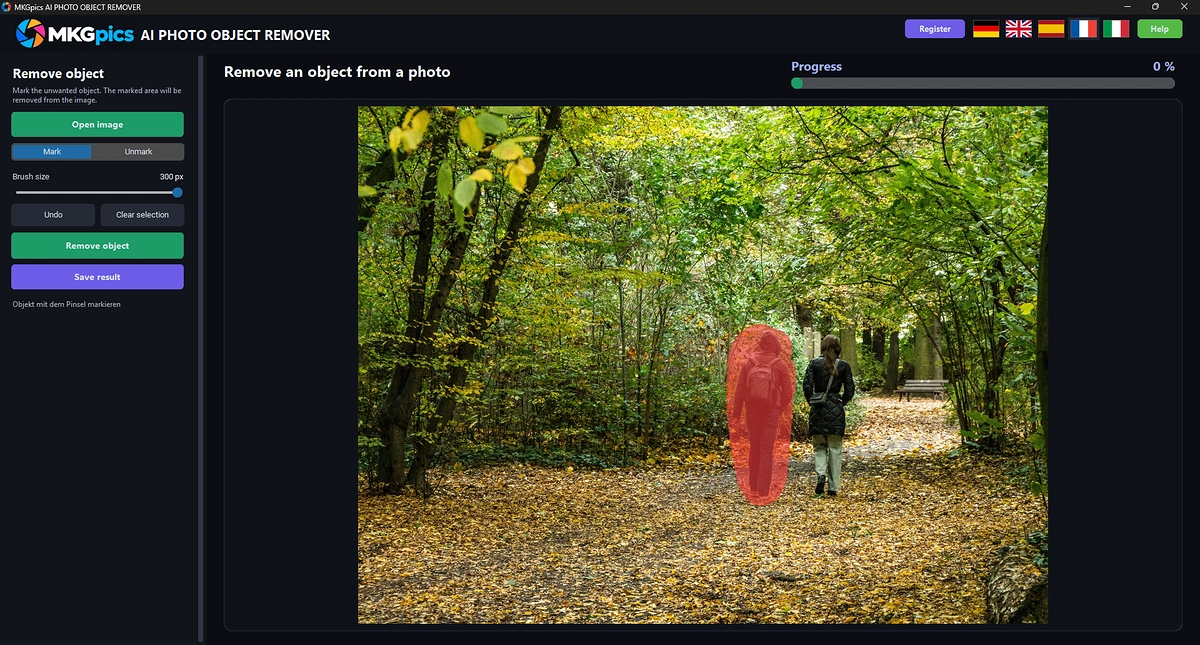
Edit photos with AI to remove objects, remove the background, replace the sky and more.
Cut Out Subjects and Clear the Background
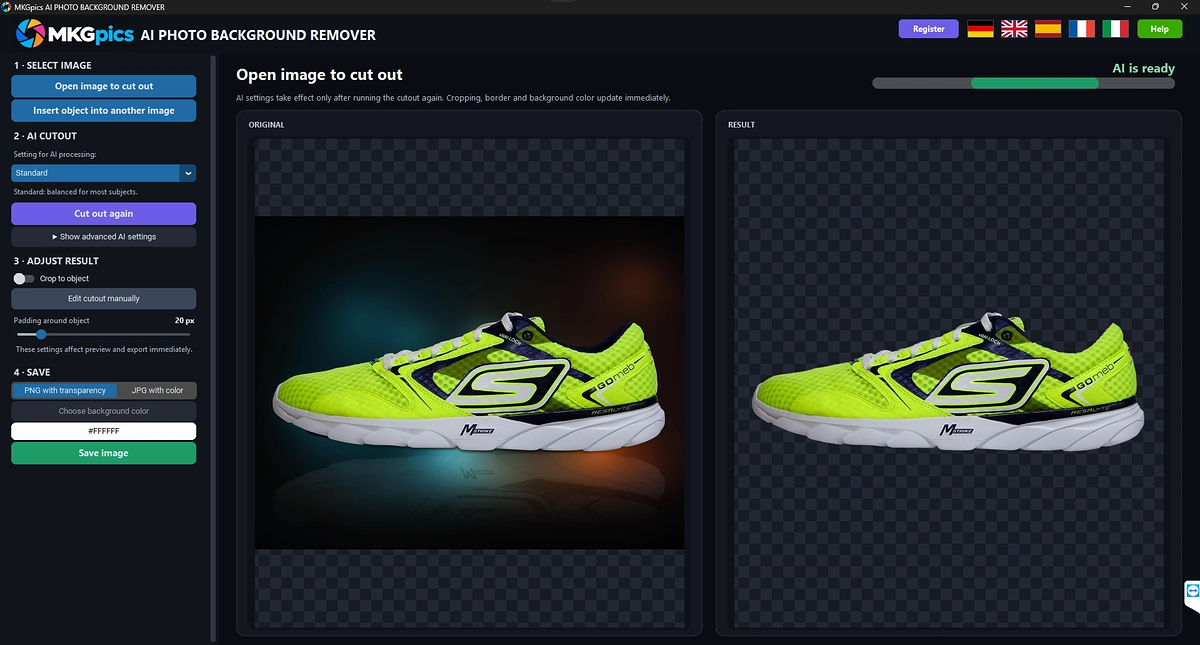
The subject is separated from the background and cut out. The background stays transparent, and PNG keeps this transparency when saving. Afterwards the photo is ready in the editor, for example for a new background. More control comes with the AI background remover with three profiles, mask editor and image composite, and whole folders go through the AI batch background remover.
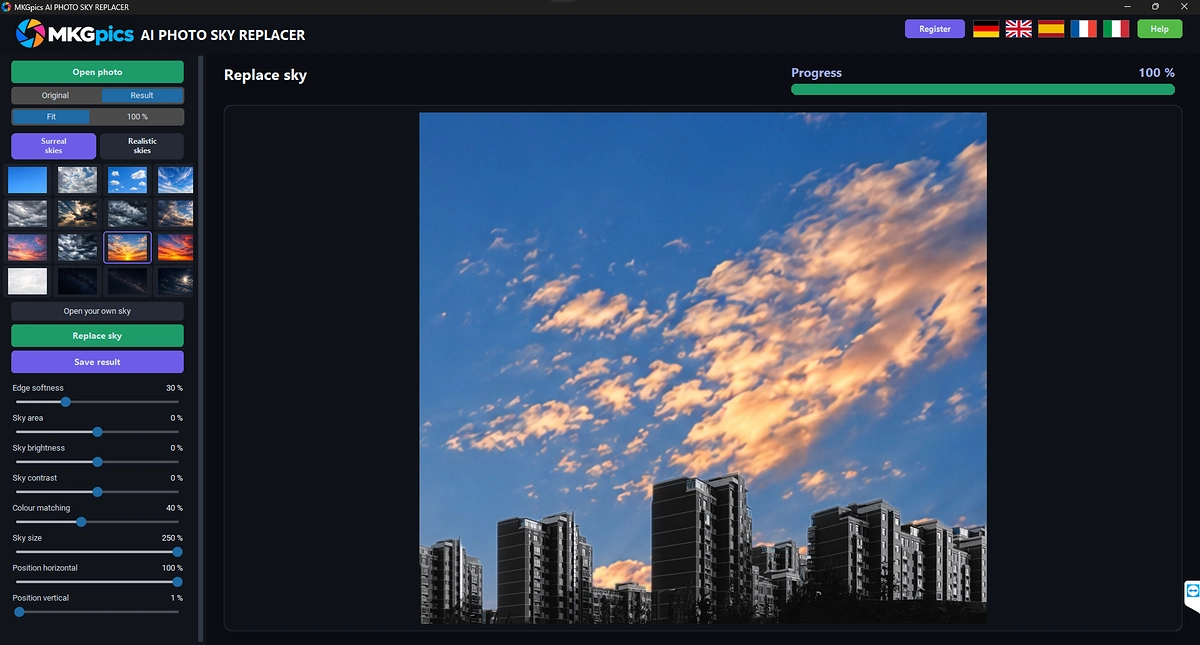
Swap a Dull Sky for a Better One
The pale or gray sky of a photo is swapped for another sky. The rest of the photo stays, and the mood of the shot changes with one click. Landscapes, houses and city views gain impact this way.
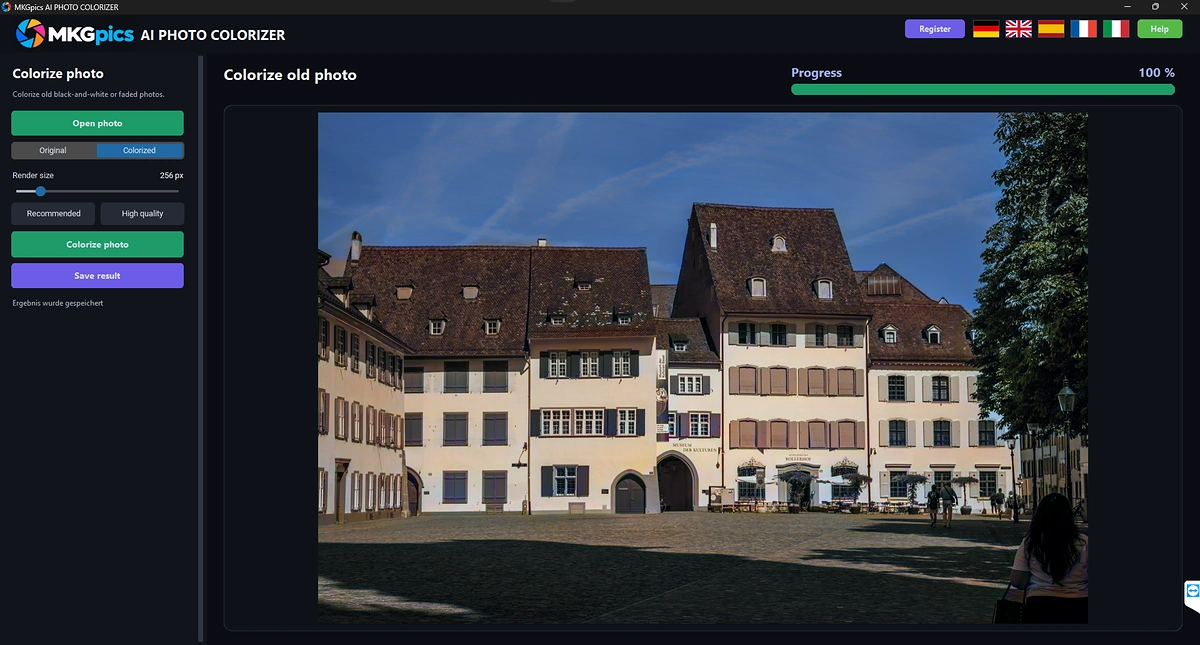
Bring Black and White Photos into Color
The AI sets the colors of a black and white photo according to the image content. Brightness and detail of the original stay intact, and the AI adds the color only. The true colors of the shot are not stored, so the result is an interpretation. Dedicated programs for this are the AI photo colorizer with a before and after switch and the batch AI image colorizer for whole archives.
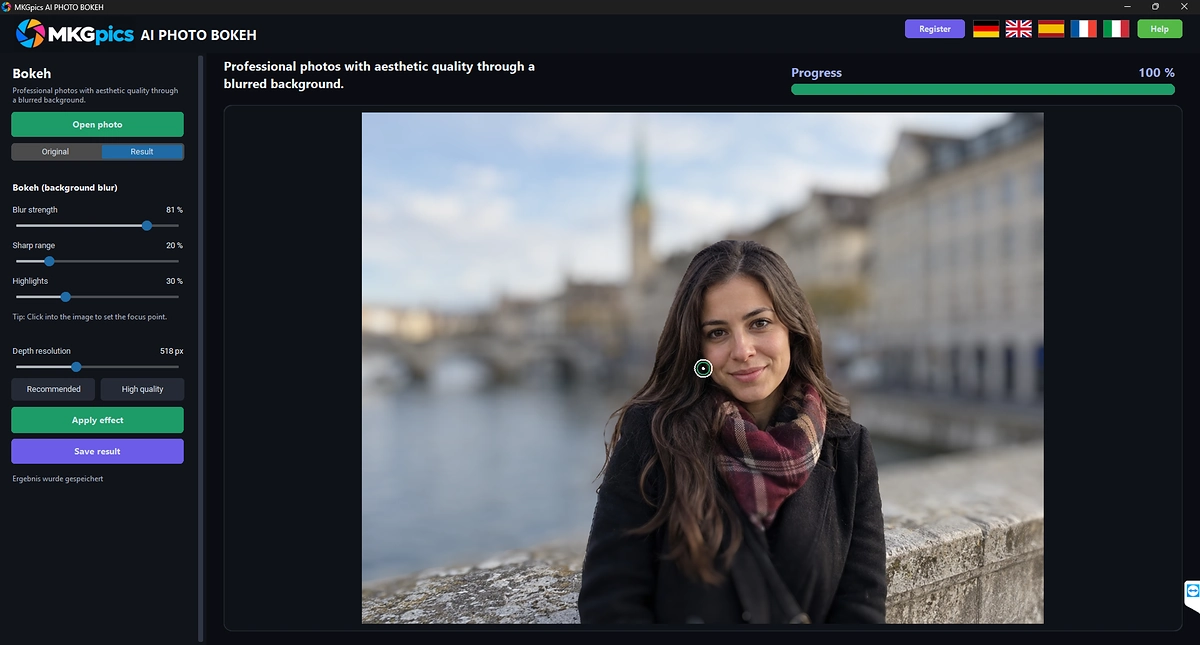
Soften the Background with a Bokeh Effect
The background is blurred softly while the subject stays sharp in the foreground. The photo looks as if it had been shot with a fast lens, without any special equipment.
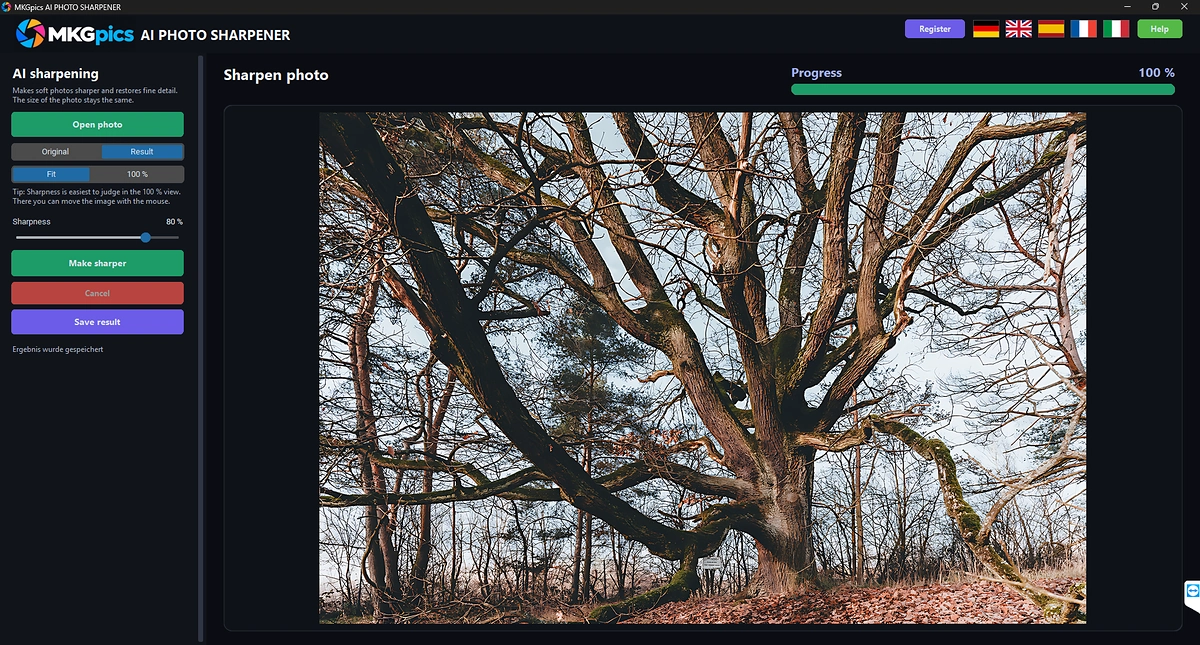
Pull Blurry Shots into Focus
Blurry photos become sharper. The function works on the whole image and brings out edges and structures that look washed out in the shot. The Before/After comparison shows the result next to the original.
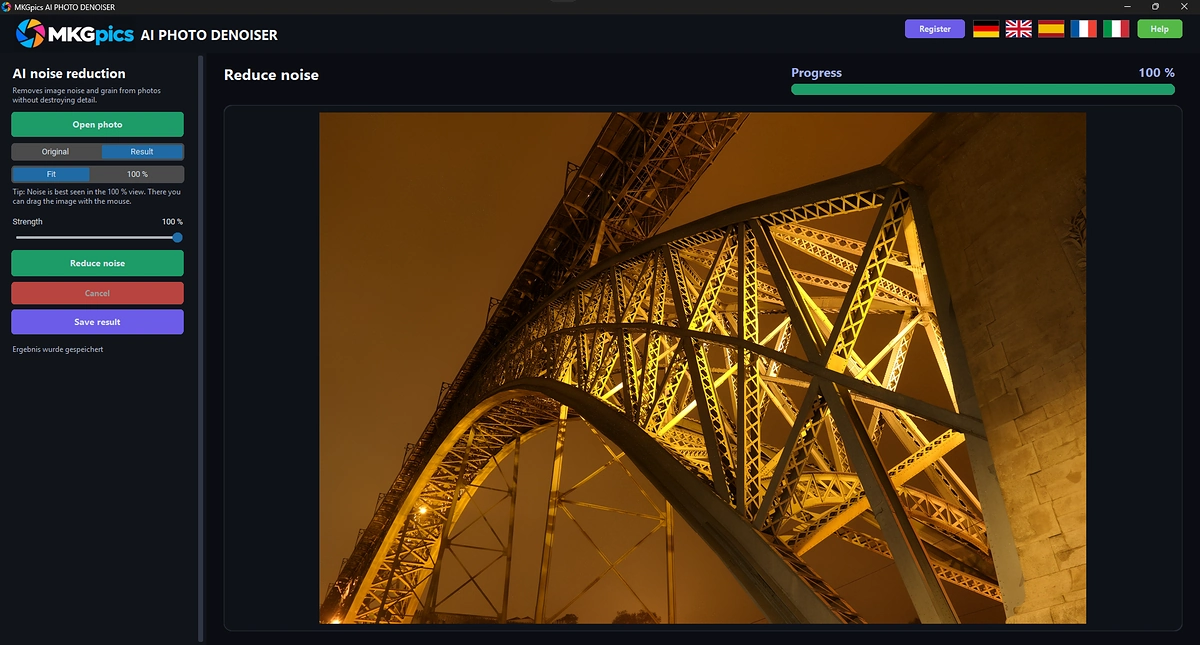
Clean Up Noisy Photos
The AI spots the noise in a photo and smooths it while the image structure stays sharp. Noise shows up at high ISO values, in dark rooms and in heavily brightened shadows. The photo keeps the size of the original. Many photos in one run are handled by the batch AI photo denoiser.
Enlarge Photos Without Stretching Them
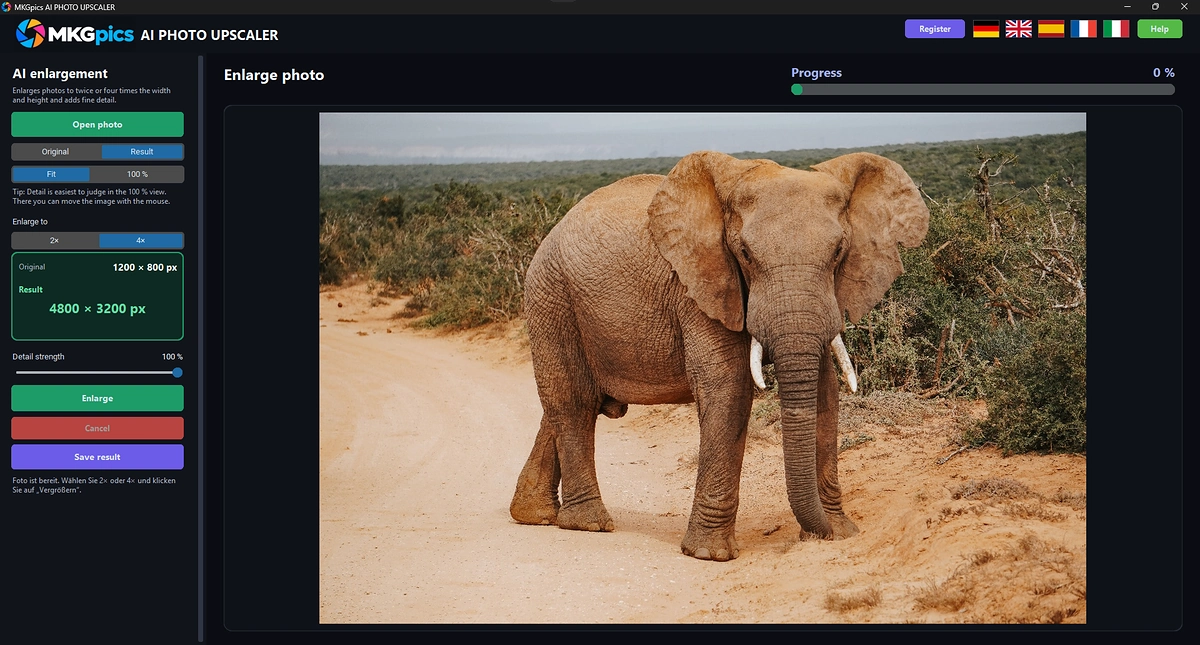
With the factor 2× a photo gets twice the width and height, with 4× four times. The AI does not stretch the photo, it assembles new pixels according to the image content, so edges, lines and structures stay clearer than with an ordinary enlargement. Whole folders are enlarged by the batch AI photo upscaler in one run.
Who Works with This AI Photo Editor
The program serves everyone who wants to improve and change photos on the PC with AI.
Because the AI works locally, customer orders and private shots never leave your computer. Professionals also like AI photo editing software that keeps all steps in one place.
- Beginners open a photo, click an AI function and hold the finished image after a few steps.
- Hobby photographers rescue blurry, noisy and pale shots.
- Professionals deliver customer photos with the AI functions and the standard steps in one program.
- Designers cut out subjects and prepare images for layouts, prints and large formats.
- Online sellers remove backgrounds and distractions from product photos.
- Archives, clubs and private users colorize old black and white photos and refresh scans.
What to Look for in AI Photo Editing Software
Good programs lead a photo to the result in a few steps and let the user go back at any time.
Control comes first in AI image editing software. The Before/After comparison shows whether an AI function improved the photo, and Undo takes back a step that does not fit. Redo restores it.
The order of the steps counts as well. All AI functions work on the same photo in the same window, so the results follow one another without saving and reopening the photo in between.
Your original is safe: it is never overwritten, the result is written with the suffix _ai into a new file, and the program asks before closing if changes are not saved yet.
Last comes the price tag. No subscription, no cloud and no running costs: the AI calculates on your PC, so photo number fifty of a shoot is no more expensive than the first.
Editing Jobs for AI Image Editing in Studios, Shops and Archives
From the portrait to the product photo, the AI saves hours that would otherwise go into manual retouching.
In the studio, a shoot leaves photos with noise, small flaws and a busy background. The photo goes into the editor, the AI removes the noise, takes out distracting objects and blurs the background softly. With AI photo editing software the shot becomes a photo that the customer receives without further editing.
» Download the AI Image Editor
In online retail, product photos go through background removal and upscaling. The product stands cut out in the image, and the factor 2× or 4× brings it to the size that the marketplace demands.
Archives, clubs and private users prepare old shots. Black and white photos receive color, blurry scans become sharper, and the result goes as PNG, JPG, WebP, TIFF or PDF into the chronicle, the printout or the photo book.
Quick Answers About the AI Image Editor
Which AI functions does the program have?
The AI functions are: remove objects, remove background, replace sky, colorize black and white photos, bokeh effect, sharpen photos, remove image noise and upscale photos. Rotating, cropping, image adjustments, filter presets, text, drawing and retouching come on top.
Does the program cost anything after the download?
The AI image editing software needs no subscription and causes no running costs. The download for the PC is free.
Are my photos uploaded anywhere?
No. The entire AI calculation runs on your own PC, and no internet connection is needed.
How do I use several AI functions one after another?
Choose a function in the AI tab, save the photo there, and the result appears in the editor. The next function then runs on the same photo. Undo takes back every step.
Which image formats are supported?
The program opens PNG, JPG, JPEG, WebP and BMP. It saves as PNG, JPG, WebP, TIFF or PDF.
Is the original photo overwritten?
No. The program asks for a different file name or folder, and the result receives the suffix _ai by default.
|
|
