Batch AI Image Colorizer That Adds Color to Whole Albums at Once
Whole folders of black and white photos receive color in one run, and every result lands in the output folder as a PNG or JPG.
MKGpics AI BATCH PHOTO COLORIZER is made for series. Put photos or a complete folder into the list, choose the output folder and start the batch. The AI works on your own computer, with no subscription and no running costs.

To batch colorize black and white images with AI, three parts are enough: the photos go into a list, the AI adds the colors to every image, and the finished files appear in the output folder. Faded color photos get fresh colors the same way. Three quality profiles, an adjustable render size, the choice between PNG and JPG and a preview with original and result are part of the program.
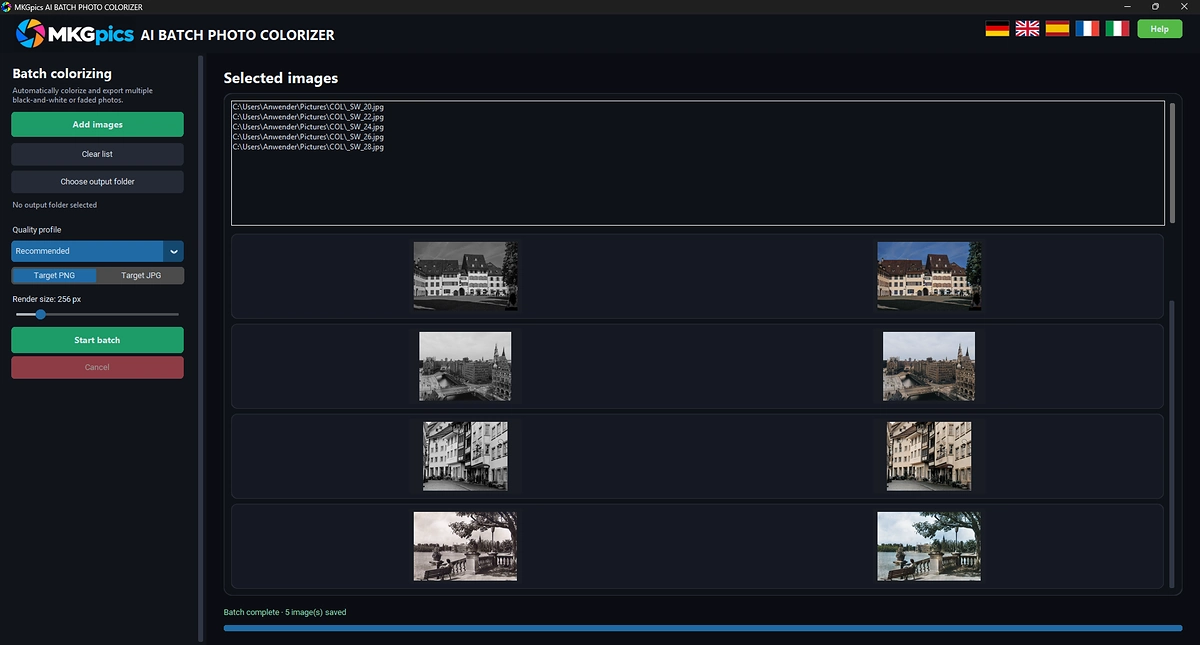
Batch AI image colorizer with list, quality profile and output folder.
Feature Overview of the Batch AI Image Colorizer
- Colorize whole folders of old photos in one run
- Add images through a dialog, after you pick one image the program asks whether to load the whole folder
- Folder contents in the order of the file names, numbers in names sorted correctly
- Clear the list and refill it while no run is active
- Three quality profiles: Recommended, High quality and Highest quality
- Freely adjustable render size
- Brightness and detail of the original stay intact, the AI adds the color only
- Output as PNG or JPG
- File names end with the suffix _colorized
- Preview with original and result for every finished image
- Progress bar with a counter, and the list marks the image being processed
- Cancel ends the run after the current image, finished images stay in the output folder
- Message at the end of the run with a button to open the output folder
- The folder with the originals is refused as output folder, the originals stay untouched
- Opens PNG, JPG, JPEG, WebP, BMP, TIF and TIFF
- Program language selectable: German, English, Spanish, French and Italian
- Python libraries on your own PC run the color AI and keep AI costs at zero
- No upload and no cloud, the whole run is calculated locally
- No subscription and no monthly fees
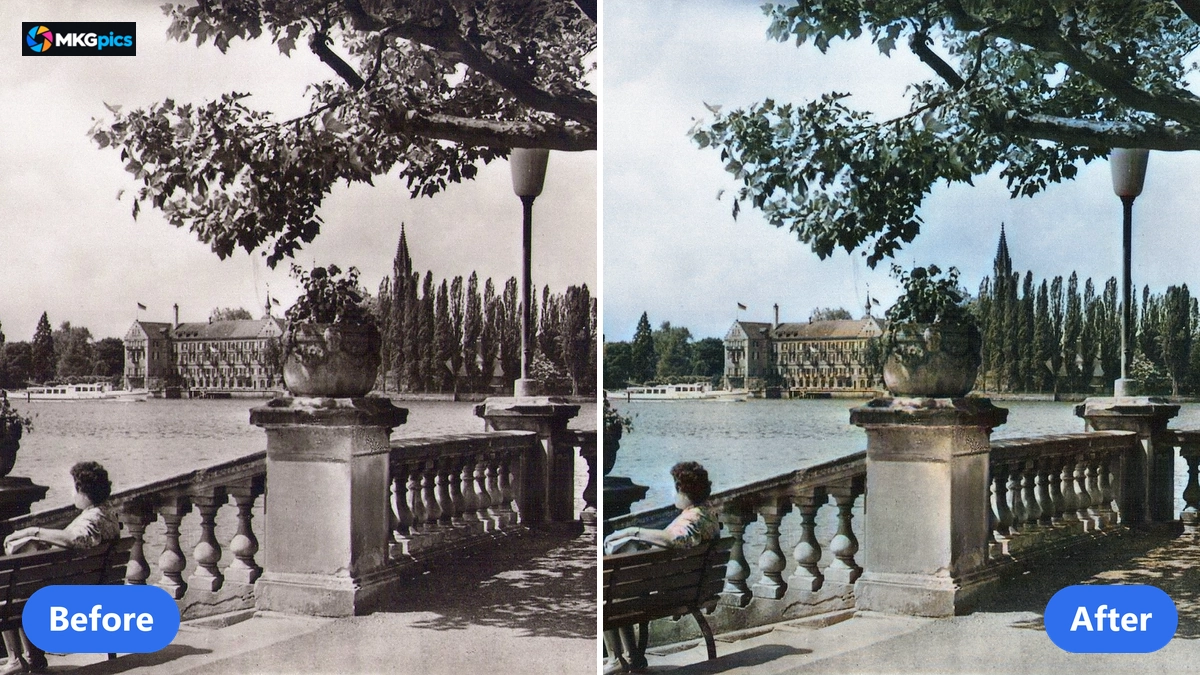
Before and after when you batch colorize black and white images, every image of the run gets the same settings.
From Gray Folder to Color Album in Three Steps
Add the photos, set the output folder, start the batch: that is all a whole folder needs.
Add images puts the photos into the list. When you pick a single photo, the program asks whether to open all images of that folder. After a yes they stand in file-name order with the numbers sorted correctly, so image 2 comes before image 10.
Quality profile, output format and output folder follow. The Recommended profile with PNG as target is a good start for the batch AI image colorizer. The Start batch button begins the run.
» Free Download Now
The run stays visible.
The list marks the current image, the counter shows how many photos are colorized, and every finished image appears with original and result in the preview. A color that does not fit a photo shows up at once, long before the folder is done.
At the end a message tells you how many images were saved, and Open output folder shows the finished files. How long a run takes depends on the power of your PC, the render size and the number of photos.
How the Color AI Works Across a Whole Series
The AI reads brightness and detail of a photo and sets the colors according to the image content. It runs on your PC without an internet connection, and no photo is sent away or used for training.
Your original keeps its structure. Brightness, contrast and detail come from your own photo, and the AI adds the color only. Colorizing therefore does not soften an image, and sharpening or scratch repair does not take place.
The quality profiles control the render size: Recommended calculates with 256 pixels, High quality with 512 pixels and Highest quality with 768 pixels. A larger render size gives the AI more image information for the color, and the calculation takes longer. You can also adjust the render size freely.
Color in a black and white photo is always an interpretation, because the true colors of the shot are not stored. The AI picks colors that match the subject, which is why the preview shows each result next to the original before the folder is finished.
Who Brings Old Photo Collections into Color
The program serves everyone who wants to see many old photos in color at once.
Everything stays on your PC, which matters for family photos, archive pictures and customer shots.
- Beginners start with the default setting and hold the colored folder after a few clicks.
- Hobby photographers bring old albums and slide scans into color in one pass.
- Professionals process customer image stocks in one step instead of long sessions.
- Designers use the colorized files as source material for layouts and collages.
- Families bring photos of grandparents and great-grandparents to life.
- Clubs, archives and local historians prepare historic image collections for chronicles and exhibitions.
Keeping the Look of a Series Consistent
A series looks right when the first photo and the last one get the same treatment.
Profile, render size and output format apply to every image of the run, so the photos of one album get a uniform look. Other material, such as faded color prints, may need another profile and its own run.
While the run is going, the counter, the marker in the list and the preview with original and result show whether the setting fits. If a profile turns out wrong, Cancel stops the run after the current image, so you can change the profile and start again. Everything saved up to that point is kept in the output folder.
The folder with your originals is refused as output folder, and every result is written as a new file with the suffix _colorized, so a run never overwrites a photo.
Whether it is a single album or a whole archive, there is no subscription, no running cost and no cloud involved.
Family Archives, Clubs and Photo Studios
From the family album to the local chronicle, one run saves hours that would otherwise go into handwork on every photo.
Family archives hold hundreds of black and white shots in folders. The scans go into the list, the Recommended profile colorizes them, and the results lie in the output folder as PNG or JPG. The folder turns into a colored album for printing, giving away or a photo book. Further corrections are handled by the AI image editor.
» Download the Batch AI Image Colorizer
In the studio, customer orders with old shots go into the list. The High quality or Highest quality profile sets the colors with a larger render size, the preview shows each result next to the original, and the customer receives the files as PNG or JPG. Noisy scans can be prepared beforehand with the batch AI photo denoiser and enlarged afterwards with the batch AI photo upscaler.
Clubs, archives and museums prepare image collections for chronicles and exhibitions. The list keeps the order of the file names, and the originals stay unchanged. To colorize just one photo, use the AI photo colorizer.
Frequently Asked Questions on Batch Colorizing
How do I colorize several black and white photos at once?
Add images or a whole folder, choose quality profile and output format, set the output folder and start the batch. The list is processed from top to bottom, and each colorized photo is saved as a new file in the output folder.
Are the colors historically correct?
The AI sets the colors according to the image content. The true colors of an old shot are not stored, so the result is an interpretation.
Does colorizing also improve the image quality?
No. Brightness, contrast and detail come from the original, and the AI adds the color only. Sharpening or scratch repair does not take place.
Does it cost anything after the download?
No. After the free download there is no subscription and there are no ongoing fees.
Does it work offline?
Yes, the entire AI calculation runs on your own PC. No photo is uploaded.
Which image formats are supported?
The program opens PNG, JPG, JPEG, WebP, BMP, TIF and TIFF. It saves as PNG or JPG.
|
|
