Bulk Photo Upscaler AI That Enlarges Entire Folders in One Run
Whole folders of photos receive twice or four times the width and height in one run, and every result lands in the output folder as a PNG or JPG.
MKGpics AI BATCH PHOTO UPSCALER is made for photo series. Put images or a complete folder into the list, pick the factor 2× or 4×, choose the output folder and start the batch. The AI calculates on your own computer, there is no subscription, and no running costs arise.

A bulk photo upscaler AI works in three parts. The photos go into a list, the AI adds new pixels to every image according to its content, and the enlarged files appear in the output folder. The list shows before the start how large each photo becomes. You get two factors, an adjustable detail strength, the choice between PNG and JPG and a preview with original and result.
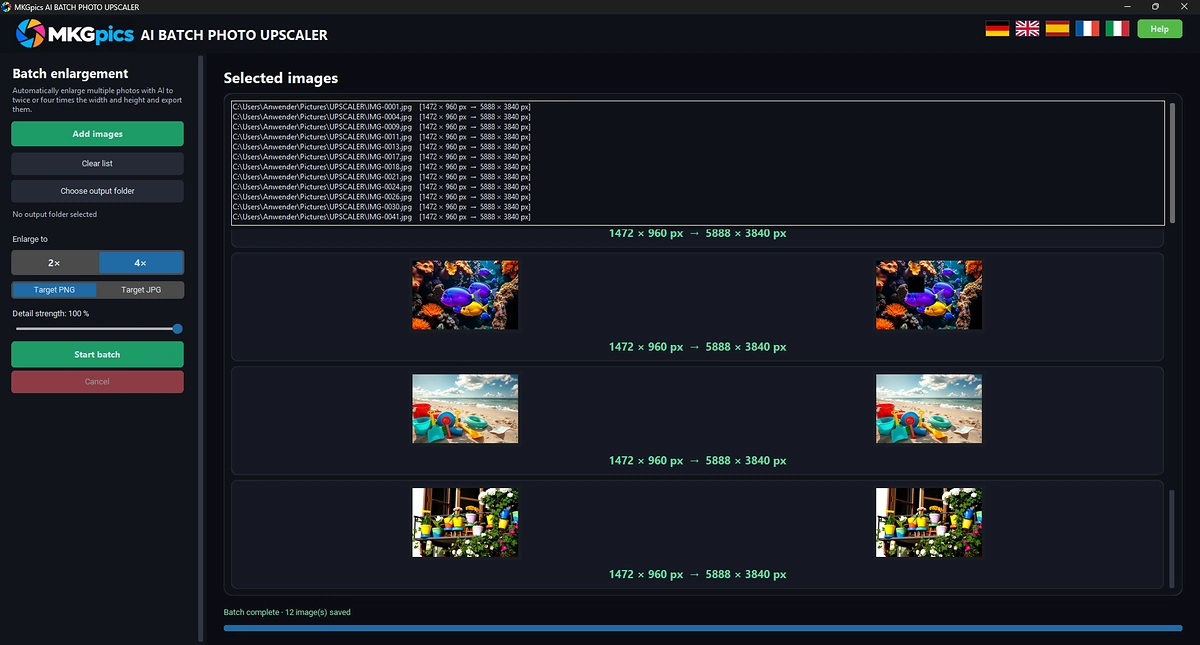
Batch AI photo upscaler with factor 2× or 4×, the list shows the new size of every photo.
Batch AI Photo Upscaler Feature List
- Enlarge whole folders of photos in one run
- Add images via the dialog, and a single pick can pull in the whole folder after a confirmation
- Natural file-name order in the list, so numbered files line up correctly
- Between runs the list can be cleared and filled again
- Enlarge to twice the width and height with 2× or to four times with 4×
- The list shows the size before and after in pixels for every photo
- Adjustable detail strength
- At a lower detail strength the result looks softer and more natural
- Output as PNG or JPG
- File names end with the suffix _upscaled
- Preview with original, result and pixel dimensions for every finished image
- Progress bar with a counter plus a progress display for the current photo, and the list marks the image being processed
- Cancel ends the run at any time, finished images are not lost
- A closing message offers a button that opens the output folder
- The program refuses the original folder as output target and leaves the originals alone
- Opens PNG, JPG, JPEG, WebP, BMP, TIF and TIFF
- Interface in five languages: German, English, Spanish, French and Italian
- Local Python libraries drive the enlarging AI, so no AI costs arise
- Photos are enlarged on your own PC, without upload or cloud
- No subscription and nothing to pay on a running basis
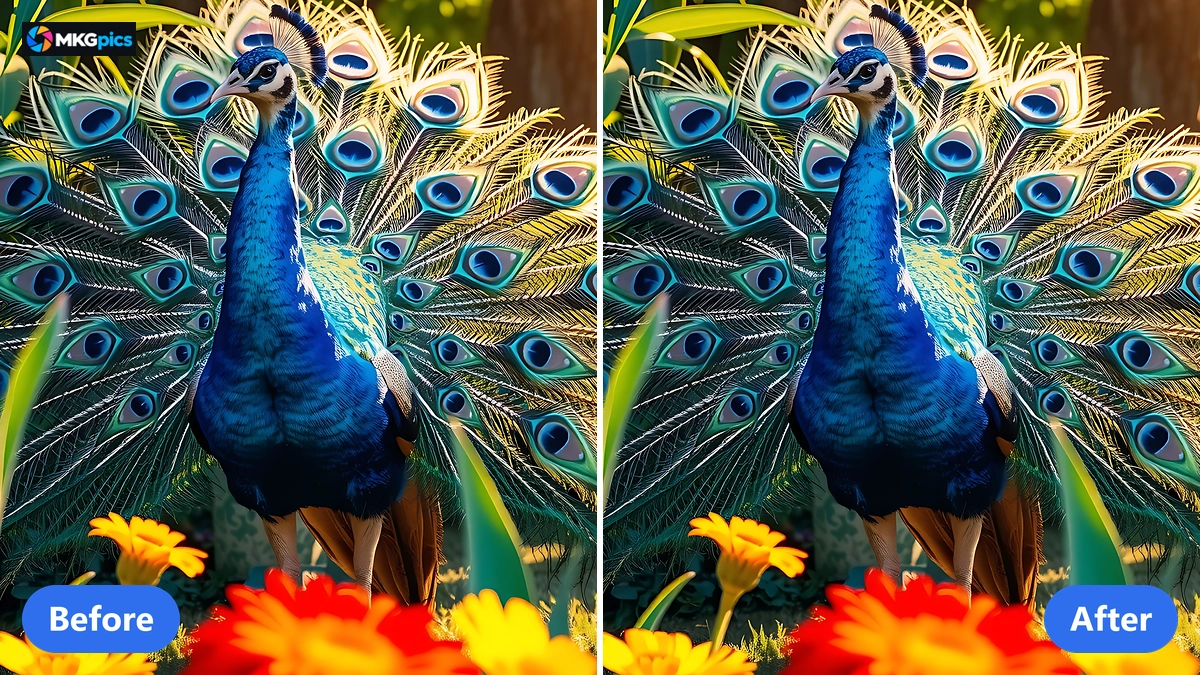
Before and after with the bulk photo upscaler AI, new pixels are added according to the image content.
Add Photos, Pick a Factor, Start the Run
Add the photos, choose a factor, start the batch: nothing more is needed for a whole folder.
Add images puts the photos into the list. Pick one photo, and the program asks whether to open the whole folder. If you agree, all photos appear in file-name order with the numbers sorted correctly: image 2 comes before image 10.
Factor, output format and output folder come next. The factor 2×, full detail strength and PNG as target are a good starting point for the bulk photo upscaler AI. The Start batch button begins the run.
» Free Download Now
You see each step while it runs.
The list marks the current image, the counter shows how many photos are enlarged, and a progress display shows how far the current photo has come. Every finished image appears with original, result and pixel dimensions in the preview.
At the end the program reports how many images were saved. Open output folder shows the files, and a report lists images it did not process, with file name and reason. The duration depends on the power of your PC, the factor and the size of the photos.
How the AI Builds New Pixels for Large Prints
The AI does not just stretch a photo, it assembles new pixels according to the image content. Edges, lines and structures stay clearer than with an ordinary enlargement. It runs without an internet connection on your PC, which keeps your photos at home and out of any training.
The factor 2× doubles width and height, the factor 4× quadruples them. One photo of 1000 × 750 pixels becomes 2000 × 1500 pixels or 4000 × 3000 pixels, and the list shows these numbers for every photo as soon as the factor is chosen. The output is limited to 80 megapixels. With very large photos the program reduces the factor accordingly, and the list marks the photo with the note 80 MP.
The progress display for the current photo shows how far the calculation has come, which is helpful with large files.
The detail strength decides how much of the AI result goes into the finished image. At full detail strength the pure AI result with the most detail appears. Lower values mix in an ordinary enlargement, and the image looks softer and calmer.
Who Needs Bigger Photos in Bulk
The program serves everyone who has to bring many photos to a higher resolution at once.
Everything runs on your PC, so customer orders and private shots stay with you.
- Beginners start with the default setting and hold the enlarged folder after a few clicks.
- Hobby photographers bring old digital photos and phone shots to a size for posters and photo books.
- Professionals enlarge whole series after a shoot in one step instead of long sessions.
- Designers prepare small image templates for large formats and prints.
- Online sellers enlarge product images to the minimum size of marketplaces.
- Archives, clubs and families refresh old scans and small image files.
Settings That Keep Quality Steady Across a Series
Quality across a whole folder comes from one set of settings.
Factor, detail strength and output format apply to every image of the run, so the photos of a series look uniform. Other material needs its own settings and its own run.
The counter, the progress display, the marker in the list and the preview with original, result and pixel dimensions show whether the setting fits. If a run goes in the wrong direction, press Cancel, change the factor and start again. Images already written stay where they are, in the output folder.
The folder with your originals is refused as output folder, and every result is written as a new file with the suffix _upscaled, so a run never overwrites a photo.
A short shoot and a whole archive cost the same: no subscription, no running costs and no cloud.
Posters, Marketplace Images and Old Scans
From the poster to the product gallery, one run saves hours that would otherwise go into handwork on every image.
After a shoot, series in screen size lie in the folder while the customer needs print sizes. The photos go into the list, the factor 4× delivers four times the width and height, and the results lie in the output folder as PNG or JPG. The folder turns into a series that fits poster, canvas and photo book. Further editing steps are offered by the AI image editor.
» Download the Batch AI Photo Upscaler
In online retail, product images often come in smaller than the marketplace demands. The factor 2× brings the whole image collection to the next size, the list shows every target size beforehand, and the preview shows each result next to the original. If the images are noisy beforehand, the batch AI photo denoiser helps.
Archives, clubs and families prepare scans and small image files for chronicles, exhibitions and albums. File names stay in order in the list, and the originals remain as they are. Old shots can additionally be brought into color with the batch AI image colorizer.
Answers on the Bulk Photo Upscaler AI
How do I upscale several photos at once?
Add images or a whole folder, choose the factor 2× or 4× and the output format, set the output folder and start the batch. The AI works through the list from top to bottom, and every result lands as a new file in the output folder.
Does AI upscaling really improve the quality?
The AI does not stretch the pixels, it assembles new pixels according to the image content. Edges and structures look clearer than with an ordinary enlargement. The detail strength controls how much of the AI result goes into the image.
How large do the photos become after upscaling?
The factor 2× doubles width and height, the factor 4× quadruples them. The list shows the new size of every photo beforehand. The output is limited to 80 megapixels.
What does it cost to use?
Nothing. The PC download is free, with no subscription and no running costs.
Do I need an internet connection?
No. Everything is calculated on your own PC, so no photo is uploaded.
Which image formats are supported?
Input can be PNG, JPG, JPEG, WebP, BMP, TIF or TIFF, output is PNG or JPG.
|
|
