Remove Objects from Photos with an AI Brush on Your Own PC
Brush, click, gone: MKGpics AI PHOTO OBJECT REMOVER works as an AI object remover and fills the gap with a fitting background.
MKGpics AI PHOTO OBJECT REMOVER is a program for the PC. You mark the unwanted object with the brush, one click on Remove object starts the AI, and you save the result as PNG, JPG or WebP. It needs no subscription and has no running costs.

To remove an object from a photo you only need three moves: paint over it, click, save. The marked area disappears, and the AI rebuilds the spot from its surroundings, whether a passer-by, a bin or a sign stood there.
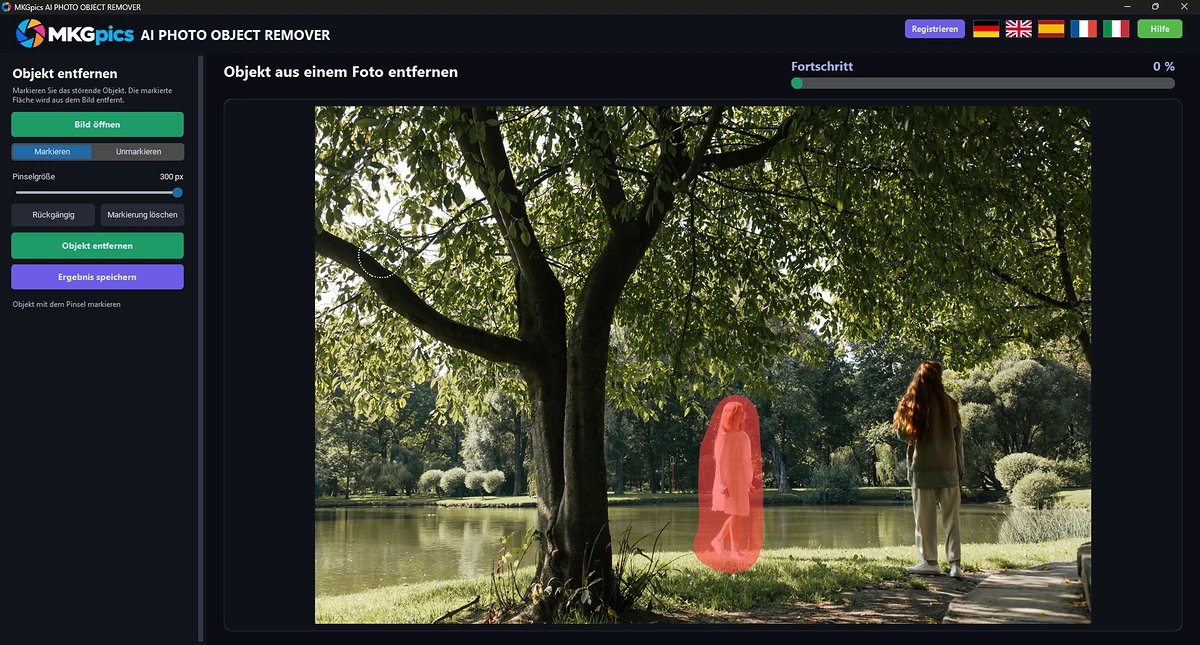
AI object remover with a brush that marks what should disappear from the photo.
Features of the AI Object Remover
- Opens PNG, JPG, JPEG, WebP and BMP
- Brush for marking the unwanted object, the mark appears red in the photo
- Brush size adjustable from very fine to very large
- Dashed circle shows the current brush size above the photo
- Switch between Mark and Unmark to erase too much marking
- Undo for several brush strokes
- Clear selection resets the whole marking
- Remove object with one click, a progress bar shows the state
- The AI fills the gap with background from around the marking
- Soft transitions between the new area and the original photo
- Saving as PNG, JPG or WebP
- File names end with the suffix _object_removed
- The original image is never overwritten
- Switch the interface between German, English, Spanish, French and Italian
- Local Python AI libraries fill the gaps and cause no AI costs
- The calculation happens on your PC, with no upload and no cloud
- No subscription, no running costs
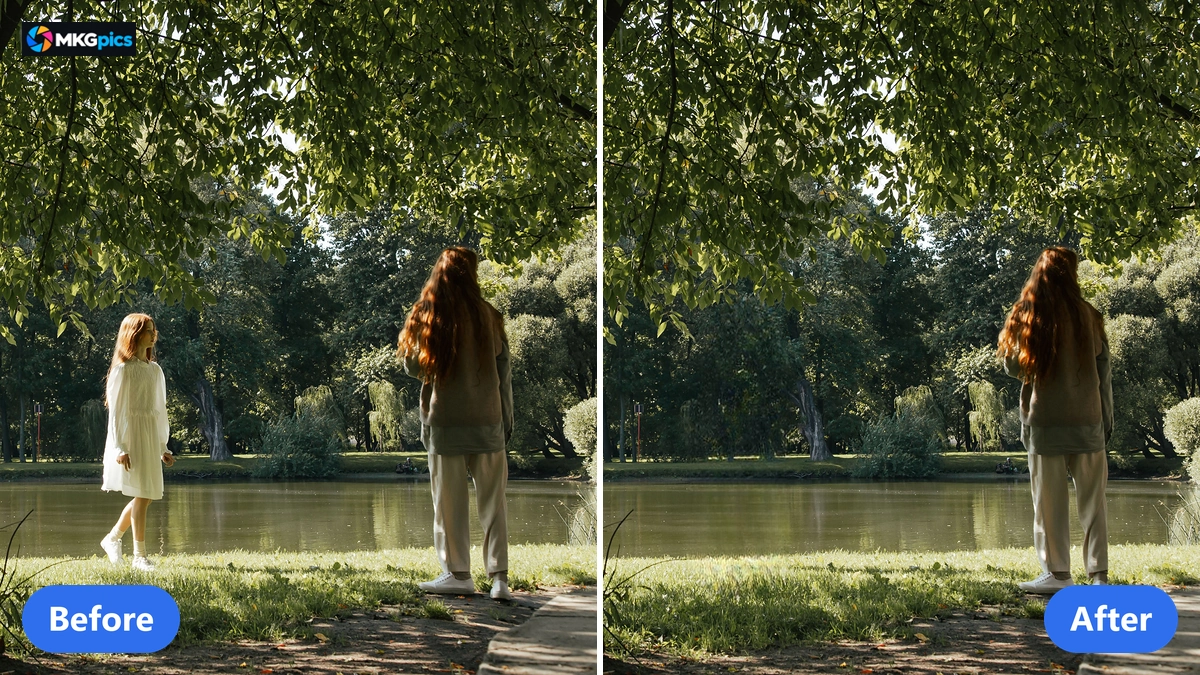
Before and after when you remove people from a photo, the AI fills the gap to match the surroundings.
Removing an Object from a Photo with Brush, Click and Save
Open the image, mark the object, remove it, save: a photo without the troublemaker needs nothing more.
Open image loads the photo into the program. Then the brush paints over the person or the thing that has to leave the picture. When you remove people from a photo, cover the whole figure with a little margin around the edges, so that no shadow or fringe stays behind.
The click on Remove object starts the AI, and the progress bar shows the state. If a stroke went too far, Undo takes it back, and the Unmark mode erases marking before the AI calculates.
» Download Now for Free
Saving is the last step.
Save result writes the photo as a new file in PNG, JPG or WebP, and the name ends with _object_removed. The program does not accept the file name of the original, so your original photo stays as it was.
Several troublemakers in one photo mean a second round: mark the next spot and start the AI again. The first result is the starting point of the next round, so a photo gets cleaned up in several passes.
How the AI Fills the Gap Behind a Removed Object
The AI works as inpainting: it replaces the marked area with image content that fits the surroundings. The LaMa model does this from a file on your PC, so no internet connection is involved, and no photo leaves the computer or trains a model.
Unwanted objects vanish without a visible patch because the AI continues structure and pattern of the surroundings: joints, grass, sand or sky. The transitions to the original photo are soft, so no hard edge appears around the new area.
A person in front of a calm background gives the cleanest result. In front of a beach, a meadow, a wall or the sky the AI continues the pattern, and the simpler the background, the less the gap shows.
Crowds ask more of the AI. It has to invent a background that looks plausible but does not show what was really behind. The result in the preview shows where an area looks too smooth or too patchy, and Undo or a new marking corrects it.
Cables, signs, stains and power lines follow the same course. Thin objects need a fine brush, large objects a large one, and the dashed circle shows in advance how much area a stroke covers.
Every result is the base of the next one, so cleaning up a photo means: mark, calculate, mark again. Used as an AI eraser for objects at the edge of the picture, the program usually needs little rework, since the surroundings there are easy to continue.
Who Uses the AI Object Remover
The program serves everyone who wants to free a photo from distractions.
Everything is calculated on your PC, so photos of customers, staff and members stay with you. Agencies, estate agents and clubs can work that way, and private users keep their holiday photos on their own computer.
- Holidaymakers clear tourists and signs out of travel photos.
- Hobby photographers remove passers-by, cables and bins from landscapes and city views.
- Estate agents free room photos of items that do not belong in the listing.
- Online sellers remove labels, dust and stains from product shots.
- Designers and professionals use the result as a clean base for layout and retouching.
- Beginners reach the result with the brush and one click, and the Unmark mode corrects mistakes.
Marking Tips for a Gap Nobody Notices
A good result is a gap nobody notices and an original that stays unchanged.
The marking decides the result. Tight marking leaves a fringe behind. Marking with a little margin lets the AI fill shadows and edges as well. Too much marking forces the AI to invent more, so the right measure counts.
The background decides how natural the new area looks. Even areas such as sky or water work quickly, while complex patterns call for smaller markings and several passes.
Your original is safe: every result is saved as a new file with the suffix _object_removed, and Undo takes brush strokes back.
Nothing recurs either. There is no subscription and no cloud, and a holiday album with fifty photos costs no more than a single snapshot.
Holiday Photos, Property Shots and Product Pictures
From holiday snapshot to product shot, the AI saves the hours that otherwise go into stamp retouching.
On holiday strangers stand in front of every landmark. Mark the visitors, and the AI adds the wall, the square or the meadow behind them. Scaffolds and barriers go the same way.
» AI Object Remover Program Download
In the studio and in the shop a clean product picture counts. Dust spots, labels and holders disappear from the shot. Anything that disturbs only in one place is gone in seconds, and the file moves into layout or catalog without a detour. If the product should be cut out afterwards, the AI background remover does that.
Property photos, family parties and street scenes have the same disturbers. Rooms get tidied up, streets get emptied, and photos where the background matters more than the random guest are ready for use. All AI functions in one window are offered by the AI image editor.
Questions About Removing People and Objects from Photos
How do I remove a person from a photo?
Load the photo with Open image, mark the person with the brush and click Remove object. The AI fills the gap, the preview shows the result, and Save result writes the file.
Does it cost anything beyond the download?
No. You download the program for free, and it has neither a subscription nor running costs.
Are my photos uploaded anywhere?
No. The AI calculation happens on your own PC, so no internet connection is needed and nothing is uploaded.
What happens to the background behind the person?
The AI fills the marked area from the surroundings, for example with grass, sand, wall or sky. The background is a plausible addition and no picture of what was really behind.
What if the spot is still visible after removing?
Mark the visible spot again and start the AI once more. Undo and Unmark correct the marking before the AI calculates.
Can I save in a different format than the original?
Yes. PNG, JPG, JPEG, WebP and BMP open in the program, and the result can be saved as PNG, JPG or WebP.
|
|
